
DiskInsight / Guides
What is "System Data" on a Mac — and how to clear it
You open Storage in System Settings, and there it is: a big grey bar called "System Data" eating 50, 80, even 100+ GB. There's no arrow, no list, no explanation. You just have to trust it.
What System Data actually is
"System Data" (formerly "Other" before macOS Monterey) is Apple's catch-all for everything that doesn't fit into Documents, Apps, Photos, Music or Browser. It includes:
- Local Time Machine snapshots: incremental backups stored on your internal disk.
- Application Support: databases, state, and hidden files apps never advertise.
- Caches: system caches, app caches, iCloud sync state.
- Containers: sandboxed app data and its hidden support files.
- Language packs: localization files downloaded per-app.
- Build caches (developer machines): Xcode DerivedData, npm/pnpm caches, Docker images and build layers.
Apple doesn't break this down for you — you just see the aggregate bar.
Why it balloons on developer machines
On a regular Mac, System Data grows slowly from snapshots and caches. On a developer machine, it grows from gigabytes of Xcode DerivedData, Docker images, Go build caches, and multiple package manager stores. Machines with several projects and containerized environments routinely see System Data exceed 30–50+ GB.
It's not broken — it's just untracked.
How to find what's actually inside it
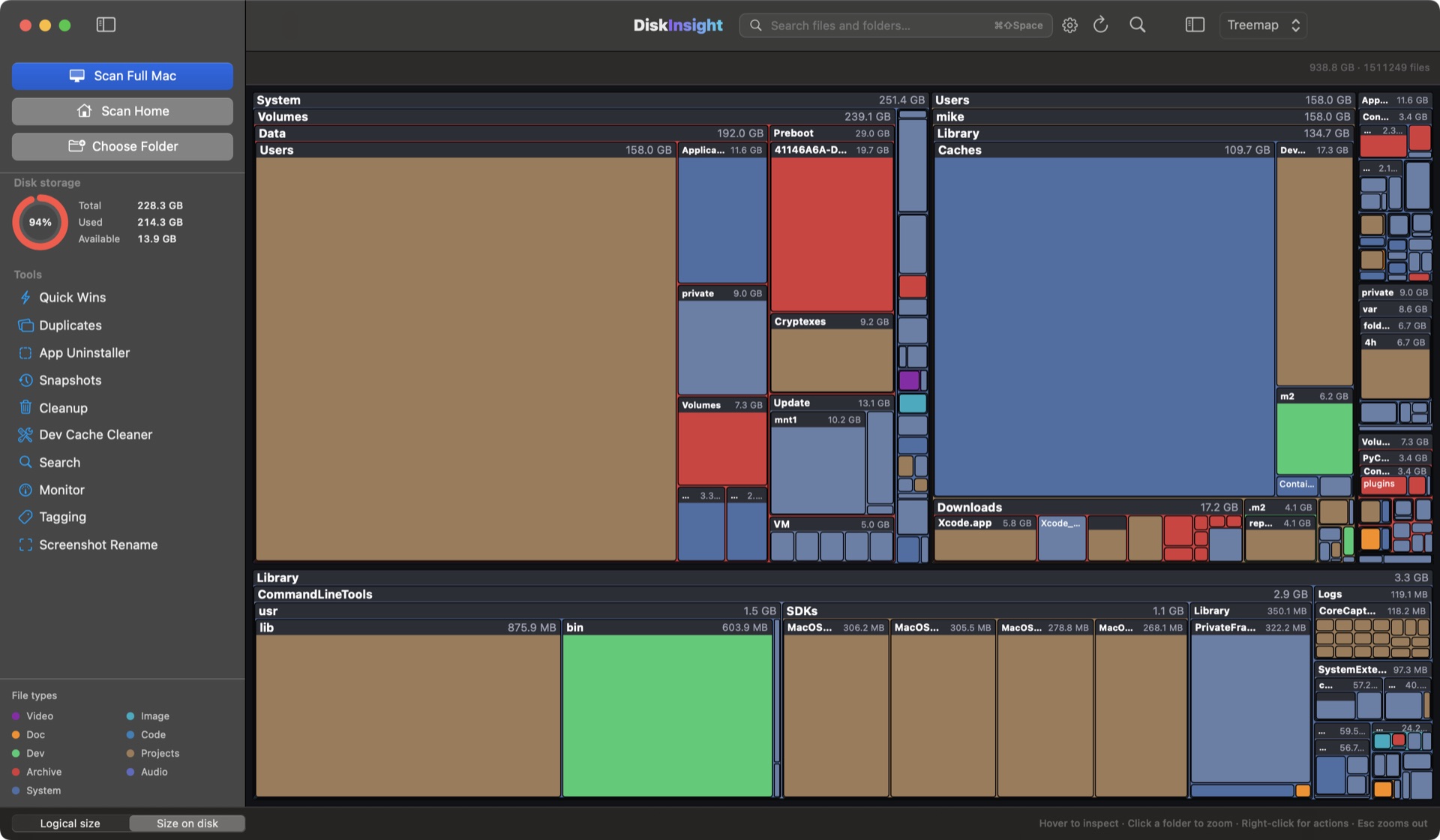
The honest way is a disk analyzer that scans every folder and file, not just the ones Apple surfaces in Storage. DiskInsight scans a folder, your home directory, or the whole Mac, maps everything with an interactive treemap, and shows you the exact byte costs of every subfolder — including the ones Apple lumps into System Data.
- Scan the whole Mac in one pass.
- See the real byte costs of DerivedData, Docker, caches and containers.
- Stage anything suspicious to the Trash with full preview — nothing deleted permanently.
The safe approach (no blind deletes)
System Data is big, but most of it is important. Caches are generated on demand, so clearing them is safe (the next launch rebuilds them). Snapshots can be removed from Terminal if they're local. But Application Support and Containers hold real app state — delete those and the app forgets everything.
The safest approach is to scan, identify the largest items first, and clean each one deliberately. Nothing should be deleted wholesale. DiskInsight stages everything to the macOS Trash, so you always have until you empty the Trash to change your mind.
The macOS Storage tab alone isn't enough
Apple's Storage tab shows "System Data" as a single number with no breakdown. A disk analyzer shows you exactly which folders and files contribute to it — and lets you act on them. The difference between "50 GB of System Data" and "17 GB of DerivedData, 11 GB of Docker images, and 9 GB of local Time Machine snapshots" is the difference between confusion and clarity.
Frequently asked
What counts as "System Data" on a Mac?
System Data is a catch-all for macOS internals that aren't apps or personal files: local Time Machine snapshots, iCloud sync containers, caches, Application Support, language packs, and other hidden files. On developer machines it also includes build caches and container images that live outside the home folder.
Why is my System Data so big?
Snapshots, containers, and hidden caches are the main culprits. Developer machines routinely see 30–50+ GB of System Data from Xcode DerivedData, Docker images, and package manager caches. On a regular Mac, local snapshots and system caches build up over time without being cleaned automatically.
Is it safe to delete System Data?
You should never delete System Data wholesale. Instead, identify the actual large files and folders inside it — DerivedData, snapshots, old containers — and clean those deliberately. DiskInsight maps every file in System Data, shows you the byte costs, and stages anything you pick to the macOS Trash.
What is "System Data" in macOS Ventura, Sonoma, and Sequoia?
Apple renamed "Other" to "System Data" starting with macOS Monterey (12). It groups files macOS doesn't place under Documents, Apps, Photos, Music or Browser — mainly caches, system files, containers and snapshots. Apple has never published a full breakdown of what it includes.
Keep going
Free up disk space on a Mac
Step-by-step developer guide to reclaiming gigabytes.
Find duplicate files
Tens of thousands of copies hide on most Macs.
Clean Xcode DerivedData
The hidden build cache eating your disk.
Stop guessing what System Data means
See every file in the treemap · Stage to Trash · One-time license · 100% local